Most small businesses do not fail because they lack sales. They fail because sales and cash arrive in different months. Every invoice you send without a tracking system is a small loan you did not agree to — and outstanding balances have a way of aging quietly until they are uncollectable.
The fix is not aggressive chasing. It is a boring, repeatable system: record every payment properly, know exactly who owes what and for how long, and follow up on a schedule. Here is that system, end to end, using the actual screens in LedgerBizz Standard.
Why Balances Slip Through the Cracks #
- Payments arrive in pieces — a deposit, a mid-project installment, a final amount — and nobody sums them.
- The method and reference are not recorded, so bank reconciliation becomes archaeology.
- "I think they paid" replaces "the balance is $340, due 12 days ago."
- Follow-ups happen when someone remembers, which is to say, rarely.
Each of these is a recording problem before it is a customer problem.
Every Invoice Lives in One of Three States #
| Status | Meaning | What you do |
|---|---|---|
| Unpaid | Nothing received yet | Watch the date |
| Partial | Some received, balance remains | Track the remainder and next follow-up |
| Paid | Fully settled | File it; the receipt chain is complete |
In the Documents tab you set this state at creation: choosing Partial or Paid reveals the Amount Paid field (Paid auto-fills the grand total), and the method and transaction reference are captured right there in 💳 Payment Details. One honest nuance: quotations, LPOs, proformas, delivery notes, and credit/debit notes are not payment documents — they save as Completed, and their payment button is deliberately disabled. Receipts always save as Completed too: a receipt is proof of money received, not a running balance.
The 🪙 Record Payment Dialog, Field by Field #
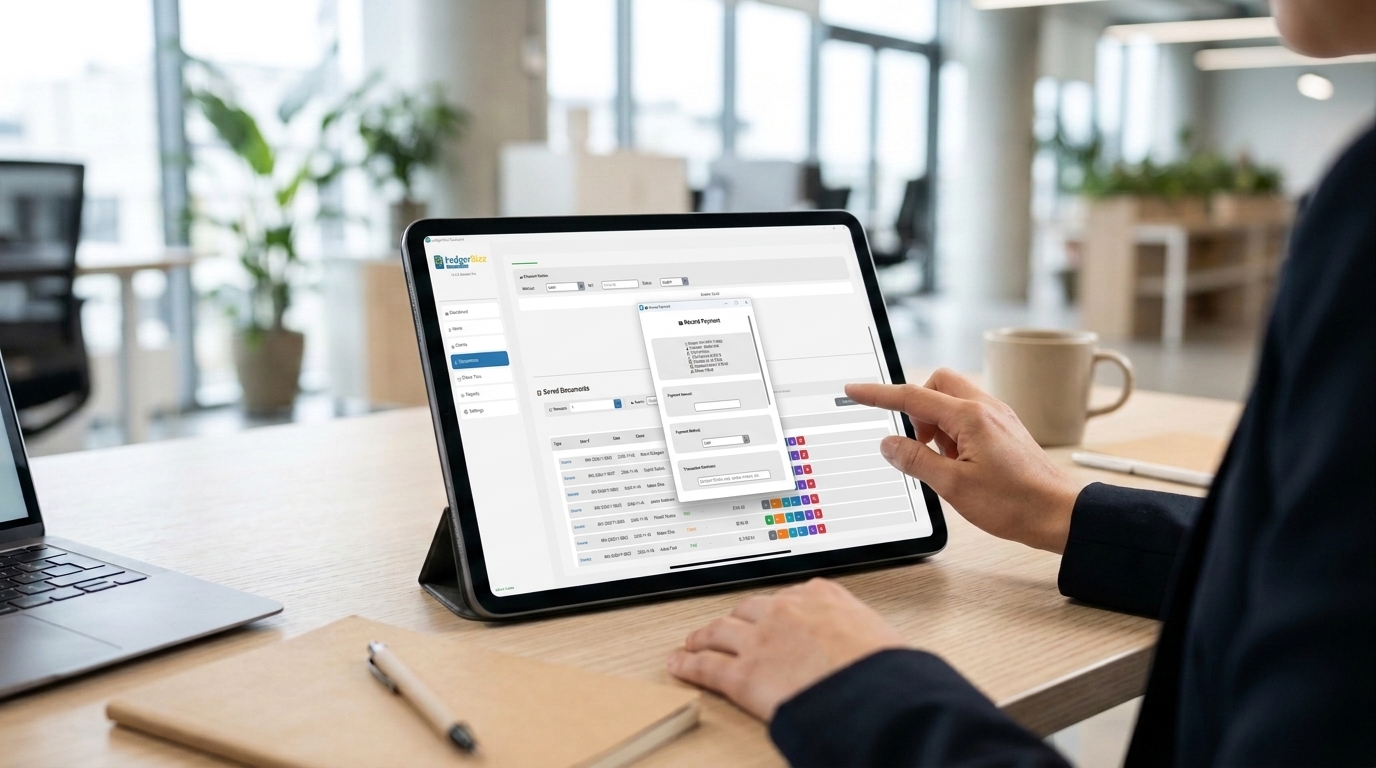
On any unpaid or partial invoice in 📋 Saved Documents, click the 🪙 button (tooltip: Record Payment / Update Status). The dialog opens with the full picture — invoice number, customer, total, Already Paid, Current Balance, and status — then takes four inputs:
- Payment Amount — as you type, the balance panel recalculates live and tells you plainly: "✅ Invoice will be fully paid!", "⏳ Partial payment — balance remaining", or "⚠️ Payment exceeds balance!"
- Payment Method — Cash, M-Pesa, Bank Transfer, Cheque, Credit Card, or Other.
- Transaction Reference — the M-Pesa code, cheque number, or transfer ID. The placeholder says it best: "MPESA code, cheque number, etc."
- Notes — anything future-you will want to know.
Save, and the invoice updates itself: balance cleared → Paid; balance remaining → Partial. If you enter more than the balance, the app asks you to confirm the overpayment instead of silently swallowing it.
Rule of thumb: a payment without a reference is a rumor. Record the reference every single time, even for cash.
Consider a $1,200 invoice settled in three moves:
| Date | Method | Reference | Amount | Balance after |
|---|---|---|---|---|
| Nov 2 | M-Pesa | QGH7YT2K9L | $500.00 | $700.00 |
| Nov 10 | Bank Transfer | TRF-88412 | $400.00 | $300.00 |
| Nov 15 | Cash | Receipt #0091 | $300.00 | $0.00 |
Three entries, one invoice, zero ambiguity. Every one of them is visible later in the ✏️ Edit dialog → 💳 Payment History & Notes panel: date, amount, method, reference, and notes, newest first. When a client asks for a statement six months later, the answer takes seconds.
Read the Outstanding List Like a Pro #
Open the Reports tab. The ⚠️ Outstanding Invoices panel lists every Unpaid and Partial invoice oldest first — which is exactly the order a credit controller wants, because the top row is always your most overdue debt. Each row shows the number, client, amount, and issue date; the age is the distance between that date and today.
Treat the list as your aging ladder:
| Age from issue date | Risk level | Typical action |
|---|---|---|
| Within terms | Healthy | Nothing — let terms run |
| Just past terms | Warm | Friendly reminder with the PDF re-attached |
| ~2 weeks past | Concerning | Direct call; ask if there is a dispute |
| ~1 month past | Serious | Formal letter on letterhead; pause new credit work |
| Beyond that | Critical | Final demand; renegotiate terms |
The pattern to watch is not any single invoice — it is a customer drifting down the list. That drift is the earliest reliable warning of a bad debt. The Payment Status Distribution chart beside it shows the Paid/Partial/Unpaid mix at a glance, and the dashboard's Pending Invoices card is your daily pulse.
A Follow-Up Cadence That Actually Gets Paid #
Put this on rails so it never depends on memory:
- Day 0 — send properly. The 📧 button delivers a clean PDF with your payment details and terms on it.
- Day due — gentle nudge. "Just confirming this landed safely" is a service message, not a chase.
- 7 days overdue — reminder with the PDF. Use the 📧 button again, or 🔄 Resend from the Reports tab's Email History — half of late payments are lost-email problems.
- 14 days overdue — phone call. Voice dislodges what email cannot, and surfaces disputes early.
- 30 days overdue — formal letter. The Generate Letterhead button produces it on your branded stationery; state the balance, the history, and a firm date.
- 45+ days — escalate terms. Pause further credit work until the balance clears.
A template for the day-7 email (paste it into Settings → Custom Email Templates):
Subject: Reminder — Invoice {invoice_number} from {company_name} Hi {customer_name}, a quick note that invoice {invoice_number} shows a remaining balance, now 7 days past due. I have re-attached the invoice for convenience. If payment is already on the way, thank you — please share the M-Pesa or bank reference so I can mark it received. Happy to help if anything needs clarifying.
Polite, specific, easy to act on. And when the money lands, the reference they send goes straight into the Record Payment dialog.
Fix Errors With Credit and Debit Notes #
Disputes are often legitimate: returned goods, a pricing error, an agreed adjustment. Do not delete history — correct it. In the Documents tab, set Type to Credit Note (reduces what the client owes) or Debit Note (adds an approved extra charge), pick the client, and choose the original invoice in the 🔗 Link dropdown; 📥 Load pulls its items so the note references the same figures.
One practical note: the note documents the adjustment — it does not silently rewrite the invoice. Record any refunded money via the payment flow and, where the balance changes, update the invoice's status in its ✏️ Edit dialog so the list stays truthful. The original invoice, the linked note, and the payment history then read as one coherent story — which is exactly what you want if a dispute ever becomes formal.
Two Numbers to Watch #
Days Sales Outstanding (DSO) — the average days between invoicing and cash:
If you invoiced $20,000 over 90 days and $6,000 is outstanding, DSO ≈ 27 days. Track it monthly; the direction matters more than the absolute value.
Collection rate — payments received ÷ amounts invoiced, per month. Below 90% for two consecutive months means your cadence needs tightening, not your patience.
Both numbers come straight out of the Reports date-range filter and the 📥 Export to Excel button — no extra bookkeeping required.
The 20-Minute Monday Routine #
- 🪙 Record every payment received since Friday, with methods and references.
- Open Reports → Outstanding Invoices; note anyone who moved down the list.
- 📧 Send the day-7 reminders (template above, PDF attached).
- Make the two oldest-row phone calls.
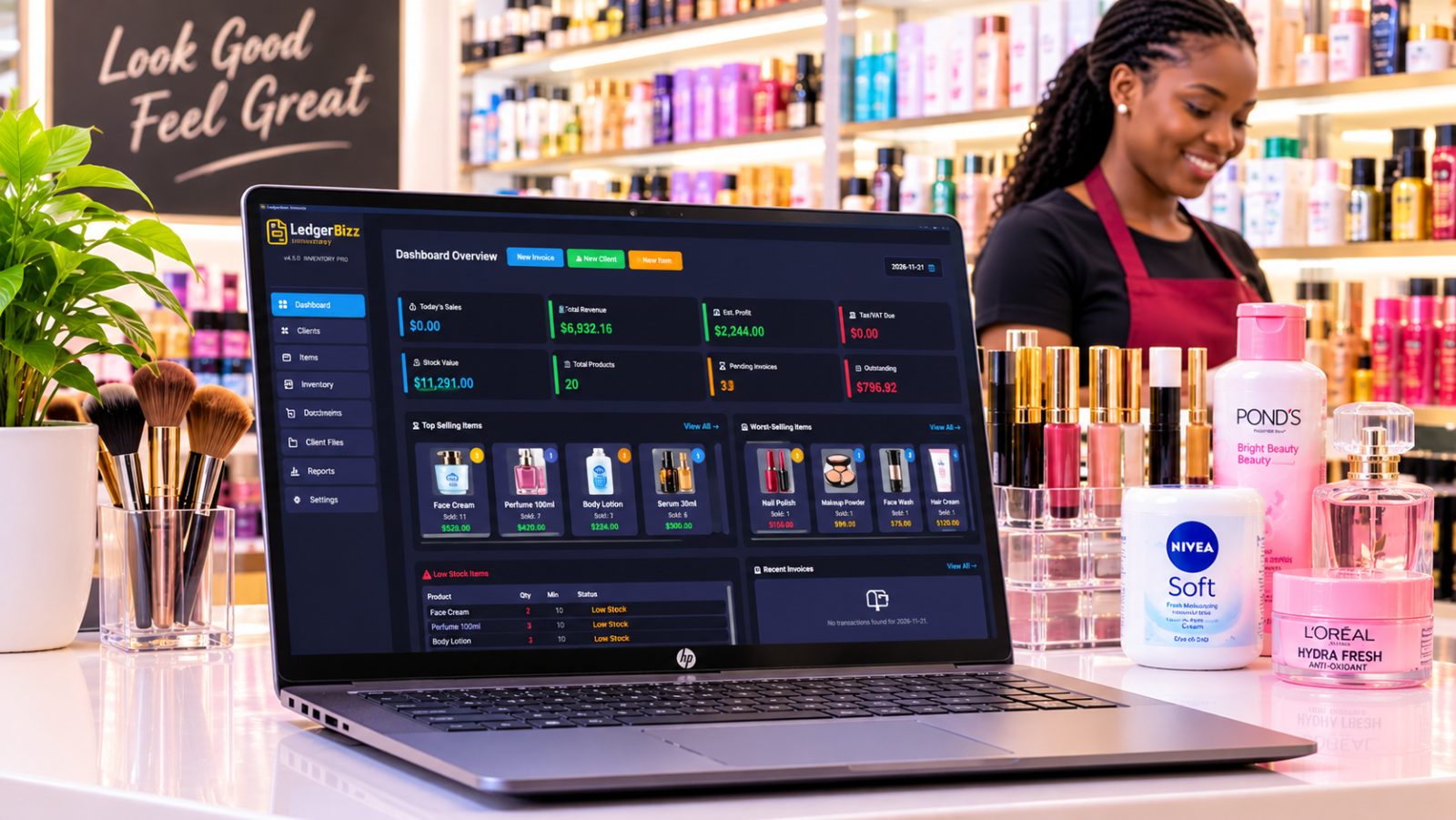
- Glance at the dashboard: Today's Sales, Tax/VAT Due, Pending Invoices.
Twenty minutes, weekly, forever. That routine — not heroic all-night chases — is what keeps outstanding balances shrinking while sales grow.
The Bottom Line #
Getting paid is a system, and systems beat intentions. Record payments with references the day they arrive, let the oldest-first list tell you where to look, and follow up on a schedule your customers can predict. The free trial of LedgerBizz Standard includes the full payment workflow — run your real receivables through it for ten days and watch the "I think they paid" era end.