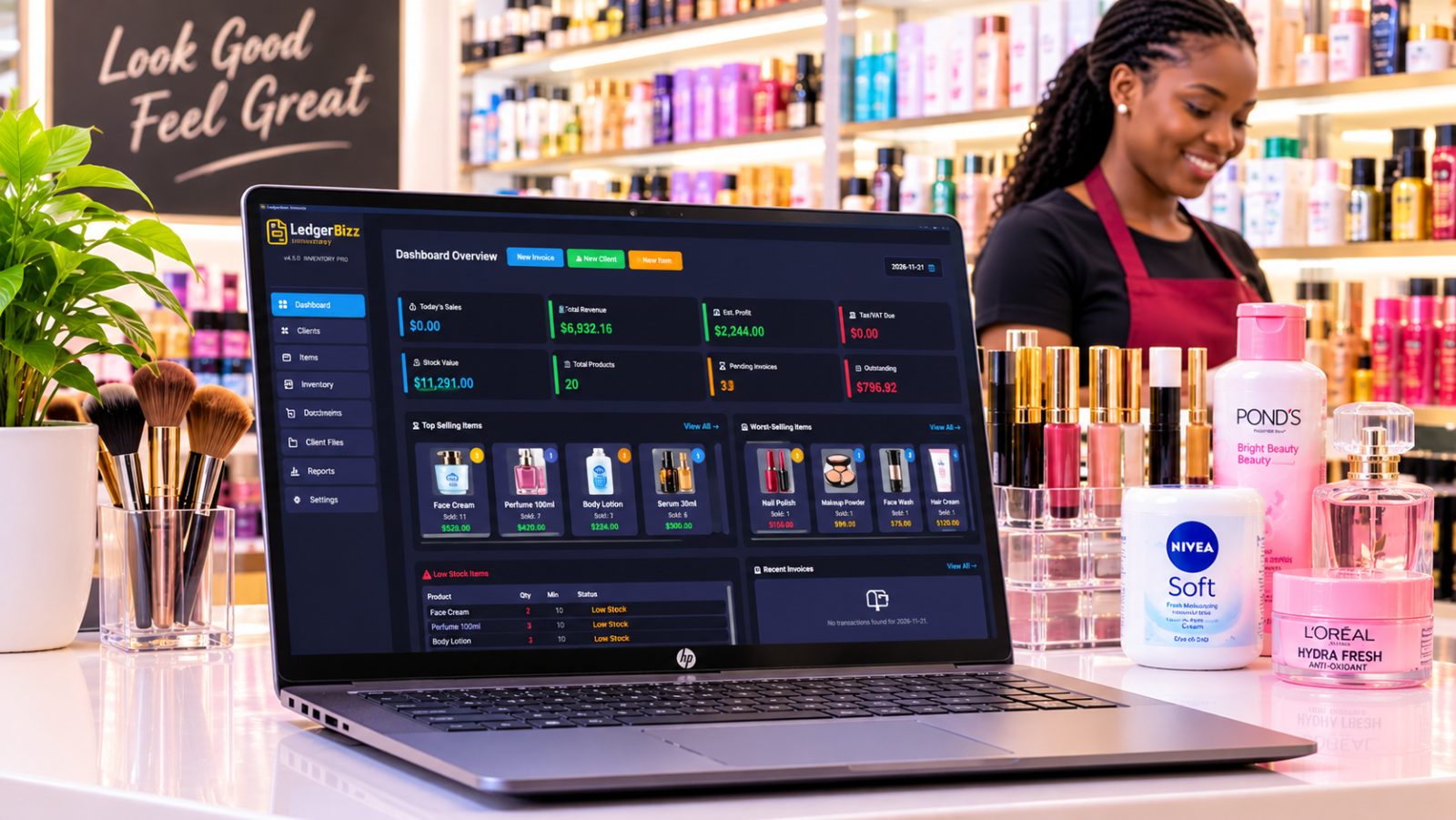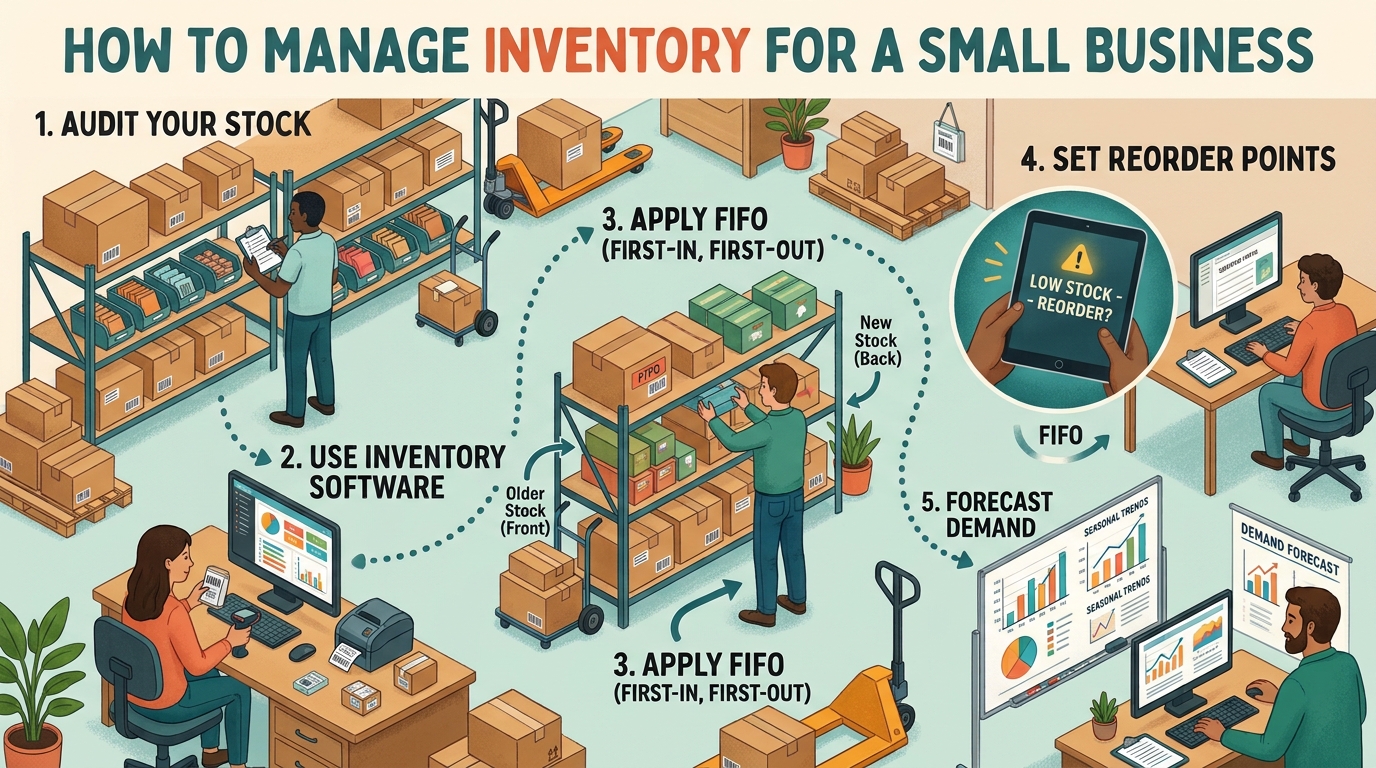
A retail shop lives or dies by what is on the shelf. Too little and you lose the sale; too much and you lose the cash. The fix is not heroic stocktakes — it is a boring, repeatable routine. Here is one built on the actual screens in LedgerBizz Inventory.
Set the Foundation: Catalog First #
The Items tab is your catalog, not your stock ledger — the app even says so: "This is your catalog. To adjust stock levels, please use the Inventory Tab." For every product capture:
- Buying price and selling price — the margin lives here.
- Min Stock Alert — defaults to 5; set it per product based on how fast it sells.
- Barcode — auto-generated if missing; view, copy or download the label as PNG.
- Photo — compressed to ≤100KB automatically so backups stay small.
Use the advanced filters (buying/selling price ranges and Stock Status: All / In Stock / Low Stock / Out of Stock) to audit the catalog in seconds instead of scrolling.
The Daily Loop #
- Open the Dashboard. Eight cards tell you the day: Today's Sales, Total Revenue, Est. Profit, Tax/VAT Due, Stock Value, Total Products, Pending Invoices, Outstanding.
- Check the Low Stock panel. Items at or below minimum show LOW STOCK; zero shows OUT OF STOCK. That list is today's reorder list.
- Sell with the scanner. In the Documents tab, ║▌ Scan to Add runs in continuous mode: each scan drops the item into the invoice at its selling price with Qty 1, and out-of-stock scans are blocked with a warning.
- Record money properly. Payment method, M-Pesa/bank reference, and status; the 🪙 Record Payment button handles partials later.
Every invoice deducts stock automatically and writes a SALE movement — your shelf count and your books never drift apart.
When Reality Disagrees: Adjust Stock #
Shrinkage happens. The Inventory tab's ⚙️ Adjust Stock dialog supports five transaction types, each with its own logic:
| Type | Effect | Use it for |
|---|---|---|
| 📥 PURCHASE | Adds quantity | Supplier delivery outside a PO |
| ↩️ RETURN | Adds quantity | Customer return back to shelf |
| ❌ DAMAGE/LOSS | Removes quantity | Breakage, expiry, theft |
| 🔄 ADJUSTMENT | Sets target count | Physical stocktake result |
| 🔧 CORRECTION | Sets target count | Fixing a data-entry error |
Each entry records unit cost, reason, reference and who performed it — and DAMAGE can never push stock below zero. That audit trail is what makes your counts trustworthy.
The Weekly Loop #
- Reports → Inventory Alerts for the full low-stock picture beyond the dashboard's top 20.
- Top Selling / Worst-Selling cards to decide what to reorder and what to promote.
- Purchasing tab: turn the reorder list into Purchase Orders, then Receive Stock when deliveries arrive — quantities and Weighted Average Cost update automatically.
- Export Filtered if your accountant wants the week's movements in Excel.
The Monthly Loop #
Run a physical count of your fastest movers and enter results as ADJUSTMENT transactions. Review Est. Profit and Stock Value trends, and prune slow movers with promotions before they become dead cash.
Five Retail Habits That Pay #
- Set min-stock from velocity, not gut feel: average daily sales × lead time, plus a buffer.
- Scan, don't type — typing errors are how phantom stock is born.
- Record damages the day they happen, with a reason.
- Never edit an old invoice to fix stock — use a RETURN or CORRECTION movement.
- Trust the running balance in the Inventory tab's Stock QTY column; it is computed from every movement, not from memory.
The Bottom Line #
Retail inventory management is a rhythm, not an event. Catalog once, scan daily, adjust honestly, reorder weekly, count monthly. The free trial of LedgerBizz Inventory includes the whole loop — run it for ten days and watch stockouts stop being surprises.